![GBF-Logo.png]](https://support.greatbooks.org/hs-fs/hubfs/GBF-Logo.png?height=50&name=GBF-Logo.png)
Logging into the platform, you will see the list of the teacher books purchased. As a teacher, you also get a copy of the student books for your grade levels. On the left-hand side, there is a column with a filter feature, allowing you to sort your books by categories, such as student books or teacher editions. Additionally, you have an option to view All books, Recently Viewed books, or Favorites.
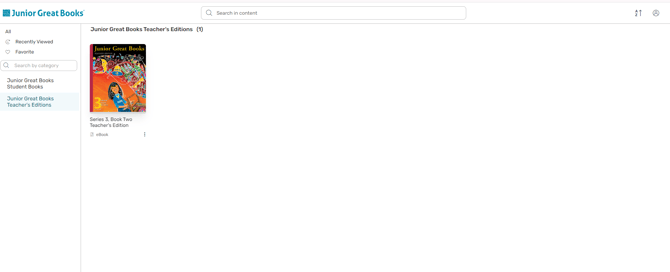
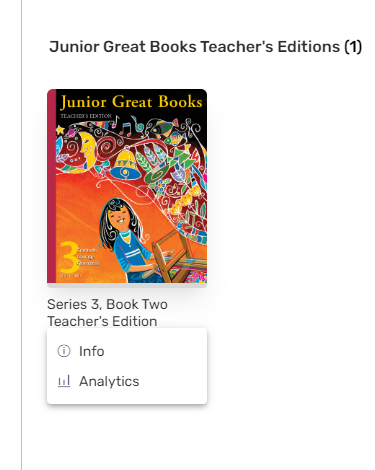
Under each book, there are three dots. Clicking on these dots will provide more information about the book, including details about its content and a breakdown of the chapters. You can click the heart icon to add the book to your Favorites or select Read Now to open the book.
In the Analytics section, you will find detailed information such as:
- Book open rate
- Reading time
- Pages read
- Reading sessions
- Average reading time
- Average pages read
- Notes shared/created
- Highlights shared/created
- Resources viewed
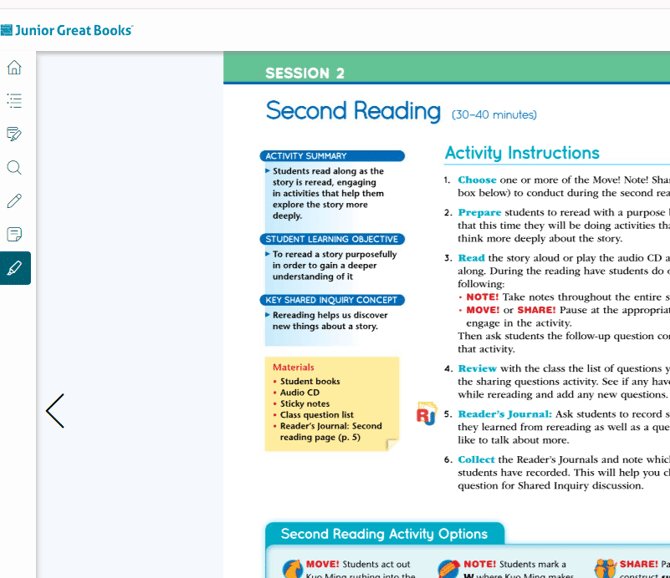
There are icons off to the left-hand side, described below from the bottom icon up. To navigate through the book, there are arrows at the top, which will go from chapter to chapter. The arrows on the side navigate through each page.
- Highlight text
- Place a sticky note (can be shared with the student if you have a class)
- Underline sections with the pen
- Search bar to search for specific words
- My Data where you can see all your student's highlights and notes
- Table of Contents, which pops out the table of contents
- Bookmarks and resources
- Home button that takes you home
Here are some helpful videos:
Navigating Your Junior Great Books Digital Library: A Pro Tip Guide
If you have any questions while reviewing your books, don’t hesitate to reach out to support@greatbooks.org.